eCommerce WordPress Themes

Need help?

Contact Us

Menu Categories

Google Sheets Tips – Awesome Things Google Sheets Can Do

Are you using Google Sheets to make your work easier? Many businesses save a lot of time by using Google Sheets effectively. It is a great tool that helps you handle data better and work well with others. Whether you are working with teams from different places, managing big amounts of data, or keeping track of projects, Google Sheets makes things simpler and helps everyone stay on track.

In this guide, we present more than 57+ indispensable Google Sheets formulas, tips, and tricks for Google Sheets that transform your spreadsheet tasks into a breeze. From basic functionalities to Google’s advanced features, our comprehensive list will equip you with the knowledge to perform complex analyses with ease.

Why use Google Sheets?

Google Sheets’s advanced features offer flexible and powerful skills that make data management easier.  If we would like to share some essential benefits:

Accessible from any device

Work on your data from anywhere, on any device with internet access.

Enhances productivity

Streamlines tasks and improves project management, making it easier to meet deadlines and achieve goals.

Real-time collaboration

Share sheets easily with team members and see updates as they happen, ensuring everyone is always on the same page.

User-friendly interface

Google Sheets has an intuitive interface that is easy to navigate, making it accessible for users of all skill levels.

If you find Google Sheet confusing or are looking to get better at it, read below to learn Google Sheet tips and tricks to make your life easier and more productive. We’ll save you the Google search—read on to discover a list of smart and handy Google Sheet shortcuts:

1.

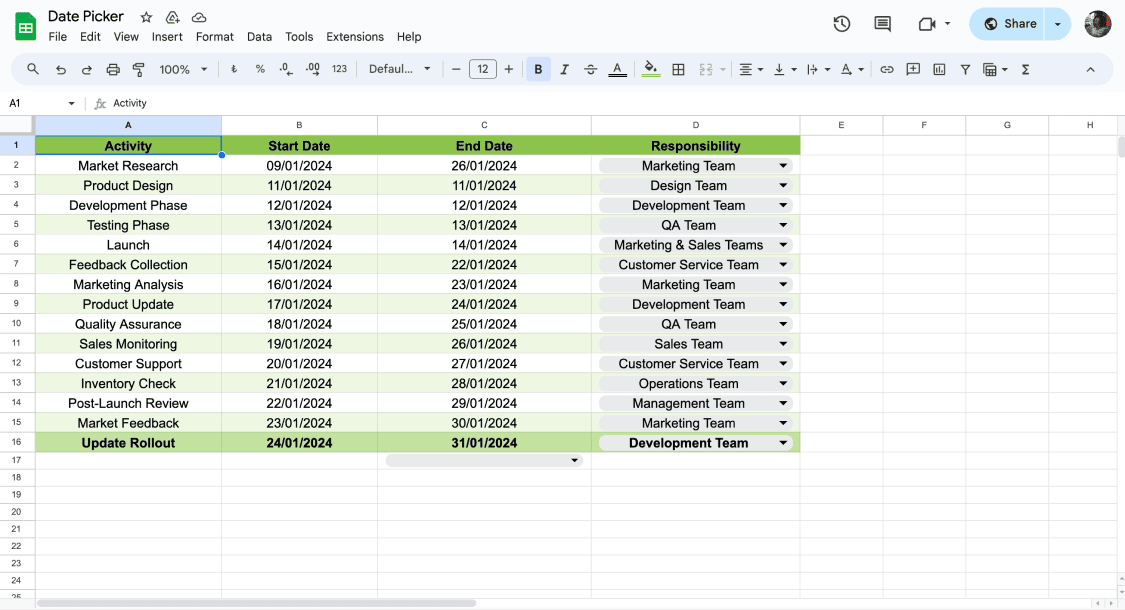
Add Date picker

Adding a date picker helps you enter dates quickly. Click on a cell, then set the format to Date using the Format menu. Now, when you click the cell, a calendar pops up to pick a date easily, streamlining data entry in multiple cells.

This feature reduces manual typing and minimizes errors. It’s especially useful for tracking deadlines, schedules, or timelines. You can also copy the formatted cell to apply the date picker across a range.

2.

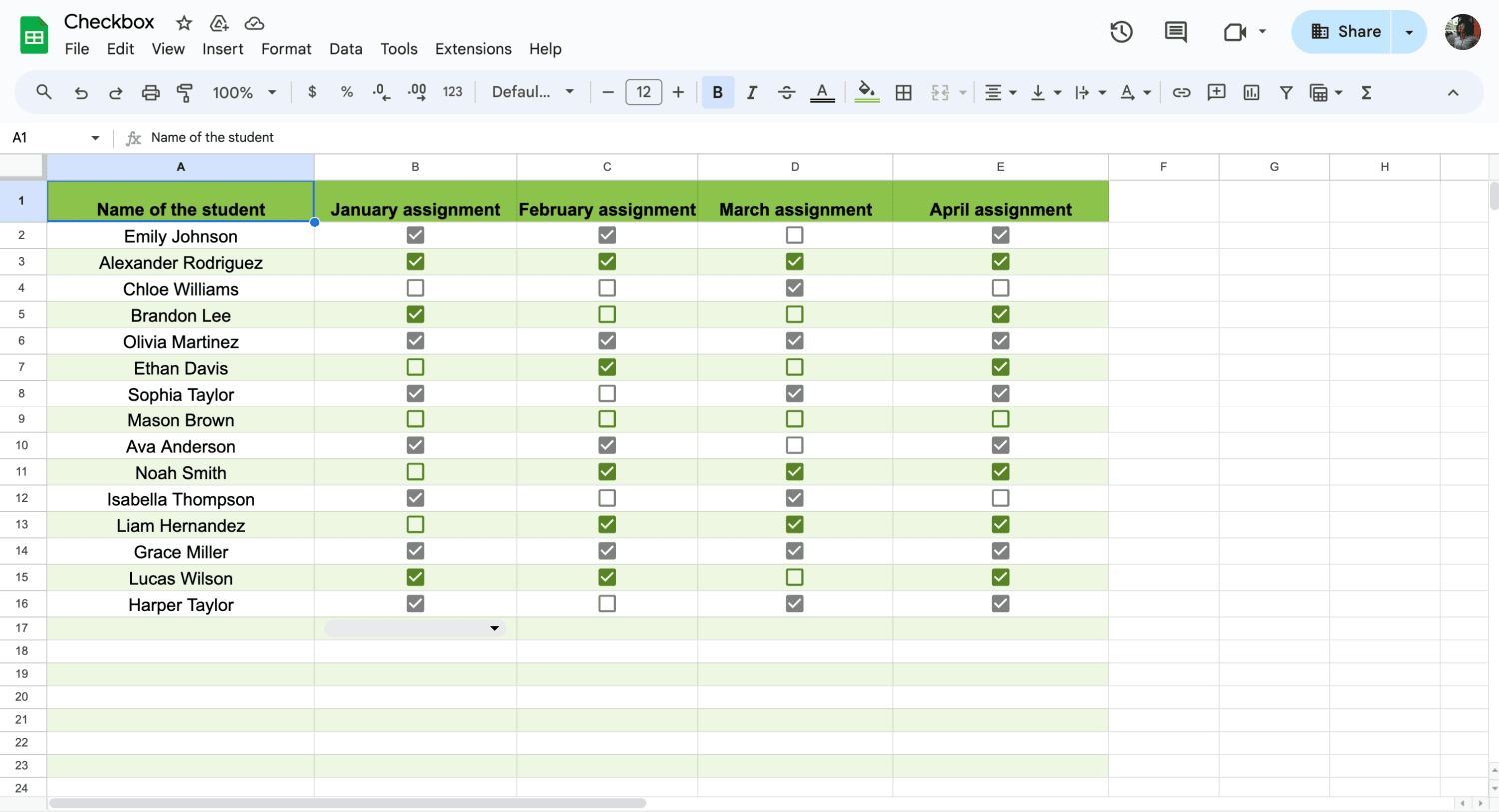
Make Checkboxes

Add Checkboxes them by going to Insert > Checkbox in the menu. They are perfect for tracking task completion or yes/no responses across multiple sheets. You can pair checkboxes with conditional formatting to highlight completed tasks. They also work well with formulas to calculate progress or filter checked items.

3.

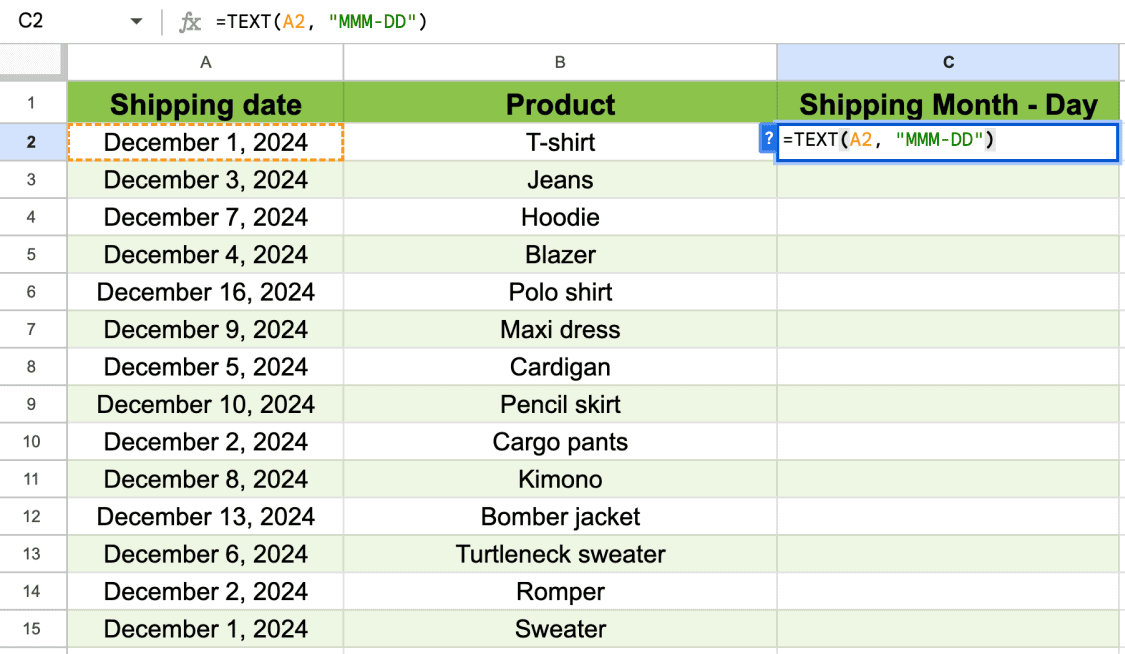
Change the Date format

To change the date format in Google Sheets, simply select the date cells, right-click to access Format cells, choose the Number tab, select Date, pick your preferred format, and apply the changes. This allows you to customize how dates are displayed in your spreadsheet for better readability and organization.

4.

Undo / Redo in Google Sheets

Quickly correct mistakes or revert changes in Google Sheets using the Undo and Redo functions. These are essential for editing spreadsheets efficiently. Use Ctrl + Z (Windows) or Cmd + Z (Mac) to undo, and Ctrl + Y (Windows) or Cmd + Shift + Z (Mac) to redo actions.

5.

Fix Mistakes in Google Sheets

Quickly correct mistakes or revert changes in Google Sheets using the Undo and Redo functions. These are essential for editing spreadsheets efficiently. Use Ctrl + Z (Windows) or Cmd + Z (Mac) to undo, and Ctrl + Y (Windows) or Cmd + Shift + Z (Mac) to redo actions.

6.

Lock Cells to prevent editing

You can secure important data, protecting specific cells from accidental edits or changes. Go to Data > Protected sheets and ranges to set permissions for these cells. This way, only authorized users can make modifications, ensuring the integrity of critical data.

7.

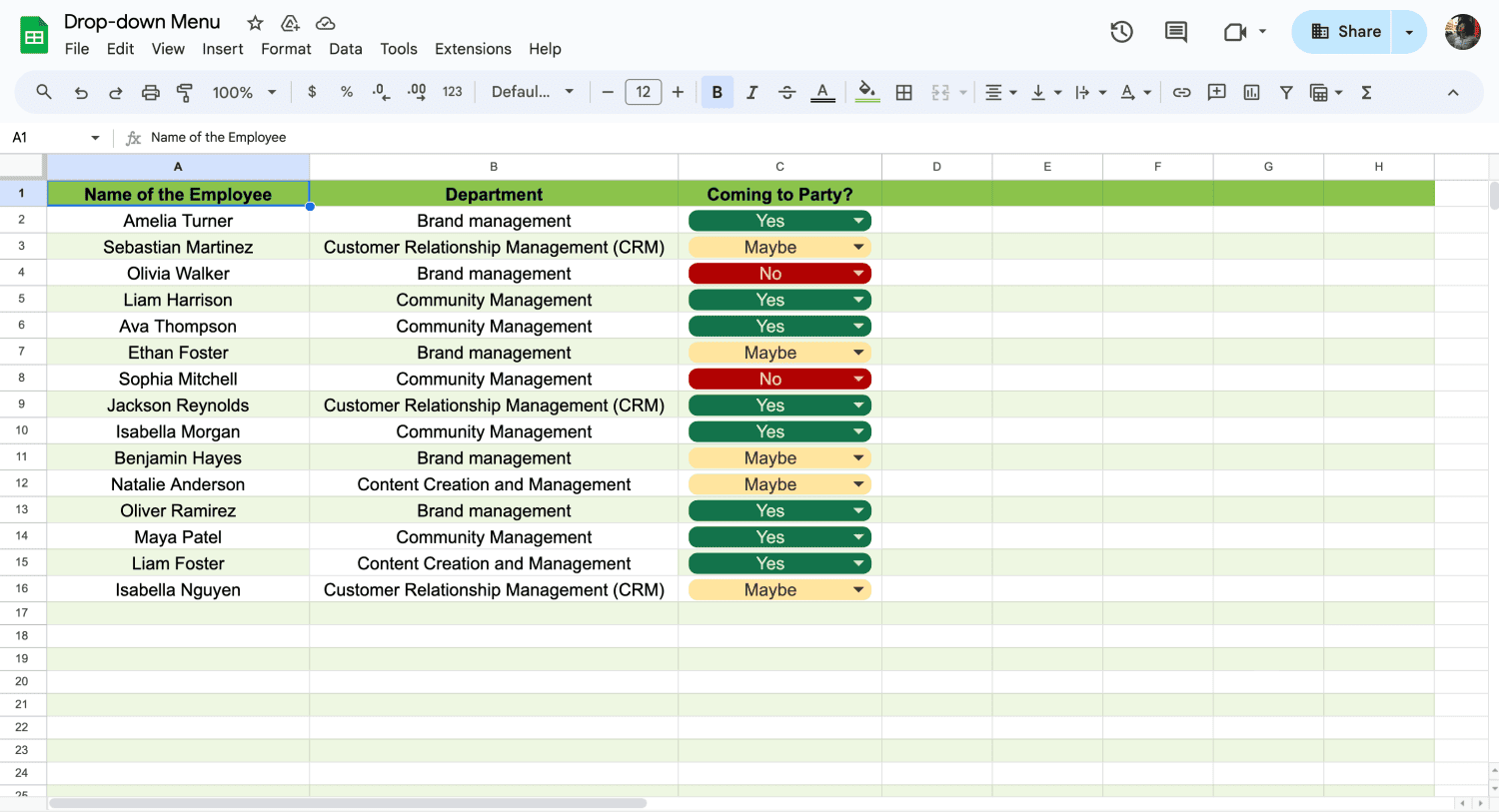
Make a Dropdown menu

Create a dropdown menu to limit data entry to specific options in cells. Ut enhances consistency and reduces errors. Set this up to Data > Data Validation, and select the cells where you want the dropdown.

8.

Import External data

Bring data from external sources into your Google Sheets with the Import function. Go to Data > Import, and you can bring data from various sources including CSV files, web pages, or even from other Google Sheets. This allows for easy data analysis and aggregation without manual entry.

9.

Data Consolidation with IMPORTRANGE

Using the IMPORTRANGE function, you can combine data from multiple Google Sheets into one sheet. This is ideal for consolidating data from different projects or departments. To pull data from another sheet, use =IMPORTRANGE(‘spreadsheet_url’, ‘range_string’).

10.

ISBLANK function to identify empty cells

The ISBLANK function quickly identifies and shows empty cells in your data. This function returns true if a cell is empty, which is useful for conditional calculations and formatting. For example, =IF(ISBLANK (A1),’ Empty’, ‘Not Empty’) checks if A1 is empty.

11.

Create Custom Functions with Google Apps Script

Connect apps that stream real-time data to bring live data into Google Sheets. This is great for monitoring and analyzing live information from IoT devices, financial systems, or social media metrics.

12.

Unique function

The Unique function simplifies finding distinct entries in a column or row. Just type =UNIQUE() and select your range of cells. It automatically removes duplicates and helps in organizing rows and columns efficiently.

13.

SORT function

Organize your data efficiently by using the SORT function. This function allows you to sort data alphabetically or numerically without manually rearranging columns. Use =SORT(range, sort_column, is_ascending) to automatically sort your data based on the column you specify.

14.

Show formulas

Showing formulas in your cells instead of the computed results can help with troubleshooting and auditing your work. To display formulas, press `Ctrl + “ (grave accent) or go to View and select Show > Formulas This makes it easier to review and edit the formulas in your spreadsheet.

15.

Using basic functions

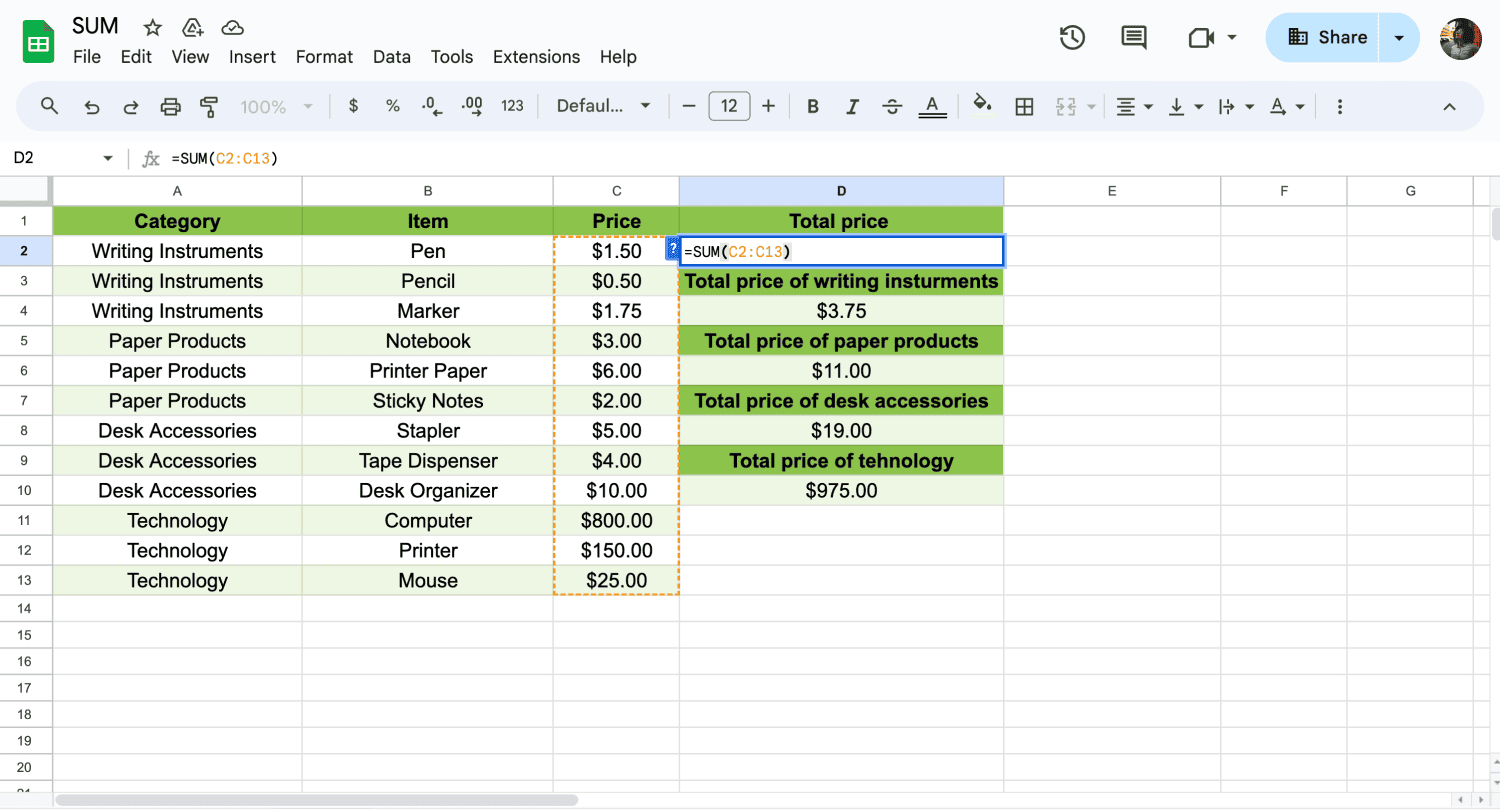
Master the basic Google Sheets functions like SUM, AVERAGE, and COUNT to manage data effectively. These functions are fundamental for performing mathematical operations similar to those in Microsoft Excel. For instance, you can sum a column of numbers by typing =SUM(A1:A10) into a cell.

16.

the GOOGLETRANSLATE function

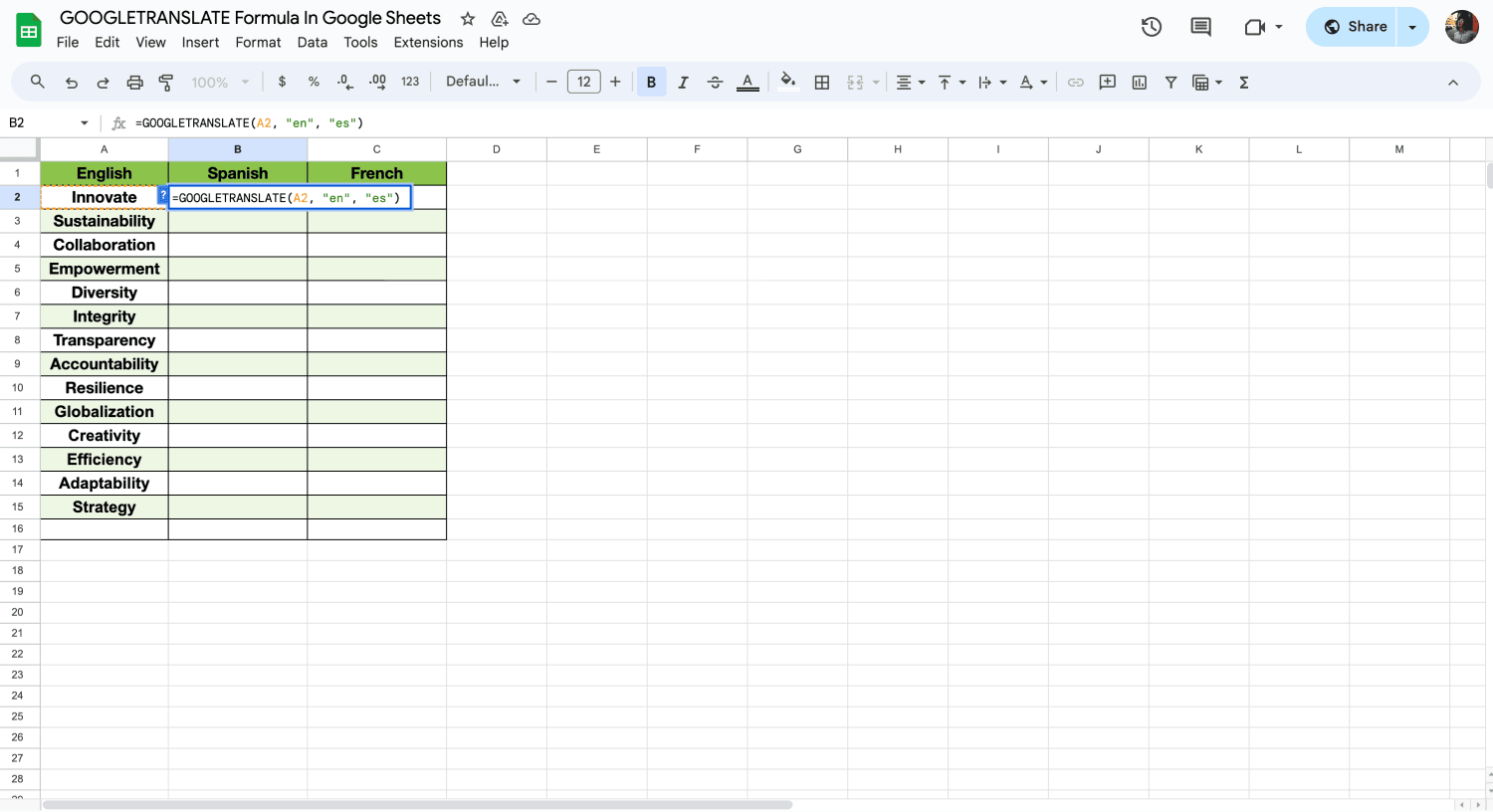
Expand your global reach by using the GOOGLETRANSLATE function in Google Sheets. This function automatically translates text in your spreadsheet from one language to another. To use this feature, simply enter =GOOGLETRANSLATE(‘text,’ ‘source language,’ ‘target language,’).

17.

Send form data to Google Sheets

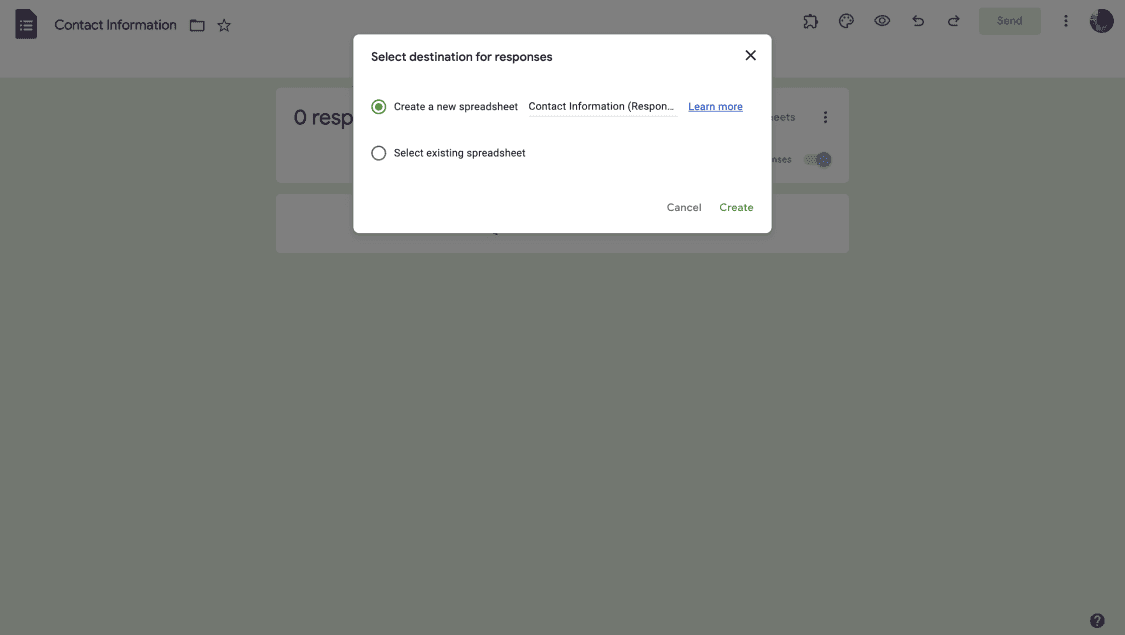
You can automatically pull data from forms into your spreadsheet as long as you follow some basic steps. Set up a form with fields matching your columns in Sheets. Once filled, it sends the email address, responses, and more directly into your sheet, great for gathering important data.

18.

Use Find & Replace

Quickly modify text or numbers with Find & Replace by accessing it through the Edit menu. This tool allows for precise replacements across your spreadsheet, helping to maintain data accuracy and consistency. (Ctrl + H or Cmd + Shift + H).

19.

Count Characters

Counting characters helps you determine how many letters, spaces, and symbols are in a cell or group of cells. This information is useful for organizing data better and making content creation easier. For example, to count characters in a single cell, you can use the formula =LEN(cell_reference).

20.

The Filter function

Create a dropdown menu to limit data entry to specific options in cells. Ut enhances consistency and reduces errors. Set this up to Data > Data Validation, and select the cells where you want the dropdown.

Key points to take away

In this guide, you have learned everything from quick data entry methods like using data entry methods to advanced manipulations with functions. These tools are invaluable for anyone looking to enhance their spreadsheet skills and streamline their workflows.

For more insights and a deeper mastery of Google Sheets, continue exploring our resources and blogs. You will find more details about various functions and tools in Google Sheets with much more details with clear steps. Stay tuned!

Want more Tips and tricks like this?

Subscribe us and get latest news, best tips and updates to your inbox directly.

Google Sheet tips and tricks FAQ

Mastering complex formulas and using Google Apps Script (similar to Excel’s VBA) is often the most challenging part of Google Sheets. It requires understanding JavaScript and how it integrates with Google Workspace.

For basic tasks, Google Sheets is generally easier due to its simpler interface and cloud-based collaboration. However, Excel has more advanced features, which can make it more powerful but also more complex.

Yes, but with limits. Google Sheets works well with moderate amounts of data, but performance may slow down with very large datasets (over 50,000 rows). For heavy-duty analysis, Excel or database tools may be better.

Google Sheets is better for real-time collaboration. Multiple users can edit the same sheet simultaneously without issues, and changes are saved automatically in the cloud.